 App Store
Mac
Mac adds a batch queue, folder import, extraction presets, automatic PNG/JPEG export and nearby source-frame review. Choose an output folder before enabling automatic export.
 Dig It
Extract frames, choose 2–60 useful stills, then turn them into a silent short video or animated GIF on Mac, iPhone or iPad.
Updated:
Selected-frame MP4 and GIF export requires Dig It 1.4.5 or later on Mac, iPhone or iPad. Check the version available in your App Store before downloading for this feature.
Choose 0.1, 0.25, 0.5, 1 or 2 seconds per frame. MP4 maximum-edge options are 720, 1280 and 1920 pixels; GIF options are 320, 480 and 640. The export preserves aspect ratio, fits stills on a consistent canvas and never upscales them. Use 2–60 frames per export. This workflow is in the graphical app, not the separate CLI.
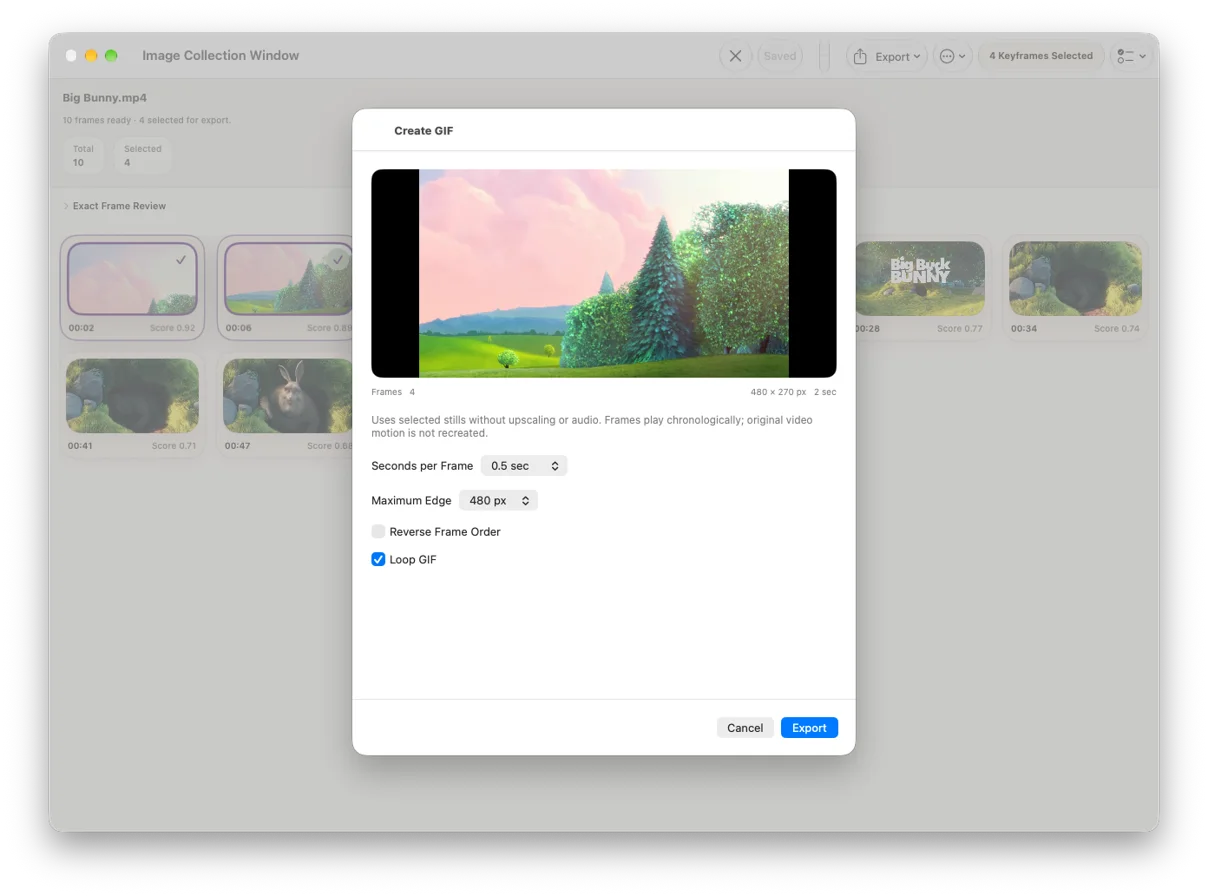
No. It displays the selected still images for the chosen duration. MP4 is silent; GIF has no audio. Dig It does not restore the source video's continuous movement, interpolate frames or generate AI motion. Use the result to share key moments or a process, not as a full-motion video conversion.
Frame sampling, source-resolution export, cropped covers and PDF contact sheets require Dig It 1.4.3 or later. Sampling and source-resolution export are Mac-only; covers and PDF contact sheets are available on Mac, iPhone and iPad.
On Mac, iPhone or iPad, select one result and choose Export → Export Cover. Choose the original ratio, 16:9, 9:16, 1:1 or 4:3, adjust the crop position and maximum edge, then save PNG or JPEG. JPEG can be limited to 2 MB; if it cannot fit, choose smaller dimensions. Images are never upscaled. For a printable overview, choose Export → PDF Contact Sheet, A4 or Letter, and 2–4 columns. Up to 120 selected frames are ordered chronologically and paginated automatically, with the video name and timestamps. With no selection, all remaining results are used. A PNG contact sheet still accepts at most 40 frames.
Mac adds a batch queue, folder import, extraction presets, automatic PNG/JPEG export and nearby source-frame review. Choose an output folder before enabling automatic export.
On iPhone and iPad, choose one video from Photos or Files, review the extracted images, export selected PNGs or a contact sheet, and explicitly save results to History.
Use Save to keep the full current result set and available timestamps in local History. Reopen a saved project to review, delete, export and save changes to the same record. The source video is not stored with the history record; older metadata-only records cannot recreate missing images.